Update SQL Server Management Studio, Keeping your (SSMS) up to date is essential for accessing the latest features, improved performance of your SSMS in VPS/Server, and enhanced security. Microsoft frequently releases updates for SSMS, making the process of updating straightforward. In this blog, we will guide you through the steps to install update SQL Server Management Studio directly and ensure your system stays current.
Table of Contents
Why Update SSMS?
Updating SSMS is more than just accessing new features; it’s about ensuring compatibility, stability, and security. Each new version of SSMS brings:
- Bug Fixes: Resolves issues reported in earlier versions.
- Enhanced Features: Adds new tools and functionalities.
- Improved Security: Protects against vulnerabilities.
- Better Performance: Optimizes existing tools for smoother operation.
By keeping update SQL Server Management Studio, you ensure your tools are in sync with the latest SQL Server versions and other Microsoft technologies.
Steps to Install SSMS Updates Directly
Here is a step-by-step guide to updating your SSMS quickly and effectively.
Step 1: Launch SQL Server Management Studio
Before checking for update SQL Server Management Studio, ensure SSMS is installed and accessible on your system. Open SSMS as you would for regular database management tasks.
- Click the Start button on your system.
- Search for SQL Server Management Studio in the application list and open it.

Step 2: Navigate to the tool Menu
The “Help” menu in SSMS offers several useful options, including the ability to check for update SQL Server Management Studio.
- Once SSMS is open, locate the tool tab in the top menu bar.

- Click Help, then select Check for Updates from the drop-down menu.
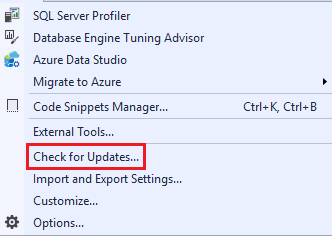
Note: If the “Check for Updates” option is not available in your version, skip to Step 5 for manual update instructions.
Step 3: Download the Latest Update
If update SQL Server Management Studio are available, SSMS will direct you to Microsoft’s official SQL Server Management Studio download page.
- SSMS will connect to the Microsoft update servers to check for available updates. If there is an update available, you will see a prompt or notification indicating the new version.

- Click on the ‘Update’ button to begin the updation process.

- Click on the latest version link to download.
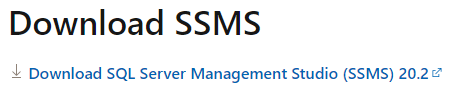
The download is typically small and should complete within a few minutes, depending on your internet connection.
Step 4: Update SQL Server Management Studio
After downloading the update, it’s time to install it.

If prompted, You must choose the installation location or accept the default settings.
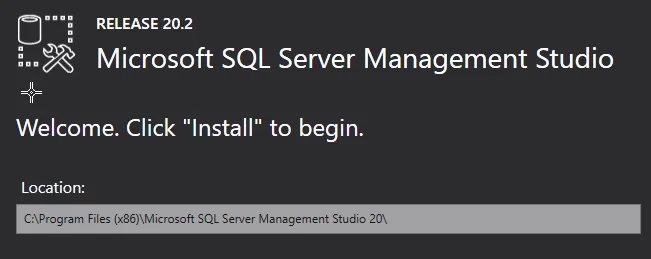
- Close SSMS: Ensure no active instances of SSMS are running.
- Upgrade Process: The installer will automatically detect your current installation and upgrade it.
The process will retain your settings, connections, and customizations.
After the installation is complete, you may need to restart SQL Server Management Studio for the changes to take effect.
That’s it! Your SQL server management studio has been updated!
Step 5: Verify the Update
Once the installation completes, confirm the update was successful.
- Reopen SQL Server Management Studio.

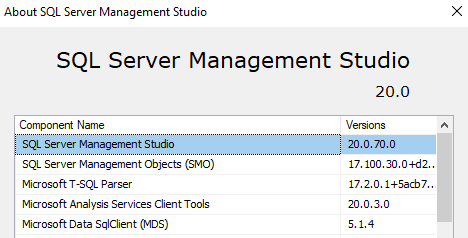
- Go to Help > About in the top menu.
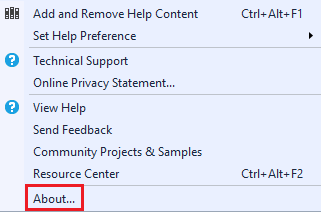
- Check the version number displayed to ensure it matches the latest version listed on the Microsoft download page.
Tip: Bookmark the SSMS Download Page for future reference.
Alternative: Manual Update
If the “Check for Updates” feature is missing or not functioning:
- Visit the official SSMS Download Page.
- Download the latest installer manually.
- Follow the installation steps as outlined above.
This method works seamlessly for all versions of SSMS.
Tips for a Smooth Update Process
- Backup Your Work: Save any ongoing tasks or queries before starting the update.
- Stable Internet Connection: Ensure a reliable internet connection for downloading the update.
- Administrator Rights: Run the installer with administrative privileges for a hassle-free upgrade.
- Read Release Notes: Check the release notes on the download page to learn about new features and fixes.
Updating SSMS is a simple yet crucial task for database administrators and developers. Whether using the built-in “Check for Updates” option or downloading updates manually, staying current ensures you leverage the latest tools and maintain security. By following the steps outlined in this guide, you’ll always be equipped with the best version of SSMS for your database management needs.
Keep your tools updated and stay ahead in the ever-evolving world of SQL Server!